What do I do if information is not getting from one site to another?
The QCS database may be split with each QCS site having ownership of one or more modules. A QCS site will track any changes made by that site and, upon export, will send all of the data that has been changed as well as data in its database that has been changed by other sites but has not yet been received by all of the sites or by RMS. The process is rather complex and is adversely affected by two actions - (1) When RMS changes the master site and (2) when the QCS master site "steals" ownership of a module that is currently owned by another site. These actions basically cause a site to restrict information that it imports from another site or to restrict the amount of information that it sends out.
If remote sites are not getting data from the master site try the following solutions one by one. Each solution is more difficult than the prior solution and the last solution, #4, involves the most amount of work but it will always sync a remote site to the master site.
1. Make sure that your remote sites are importing from the Master Site. If there are more than one QCS export file on the repository the remote sites may be selecting import files from another remote site as opposed to the master site. If the sites are importing from the master then go on to step 2.
2. Have your remote sites, before import, select the menu option "File | Utilities | Force Fresh Look at Incoming Modules
3. Have the master site, before export, select the menu option "File | Utilities | Stamp Records for Export" and place a checkmark by each module that contains data that has not been received by a remote site. Perform an [Export to QCS] and then have the remote site perform an [Import from QCS]. See the section titled "Stamping" below. If this does not work then go to step 4.
4. Have each of your remote sites assign all of the modules they own to the master site and then perform an [Export to QCS] and then delete the contract from QCS. Have the master site import from each of the remote sites. Then have the master site delete all of the remote sites. Then restart the master site. Then have the master site reassign the modules back to the remote sites and do an [Export to QCS]. Then have each of the remote sites click the [Add] button to add the contract back. This step will always work as it is basically restarting each of the remote sites with the same data that is in the master site.
If data is not getting from one QCS site to another site or from RMS you may wish to "loosen" the restrictions. To "loosen" restrictions a site has, from a site that limits what data is exported, you will have to "stamp" your records. To "loosen" restrictions a site has, that limits what data is imported you will have to "freshen" your site. These two processes, "stamping" and "freshening" are explained below.
Stamping (done when exporting)
Stamping is the process used to make information in modules that you have ownership of look as if it has been recently changed and thus eligible to be exported. To stamp a module you will perform the following steps:
1. Open the contract in QCS.
2. Select the menu option "File | Utilities | Stamp Modules for Export". The Stamp Modules for Export window will appear as shown below.
3. In the large white box in the center of the Stamp Modules for Export window will be a list of all of the modules currently owned by this site. Place a checkmark in each checkbox for each module that holds the information that is not getting to other sites.
4. Click the [Stamp Selected Modules] button to have the modules stamped. You may see a progress indicator bar briefly and then the Stamp Modules for Export window will disappear.
The next export from this site will include all of the data in each of the modules that were stamped. Beware that your export will be larger as more data than normal may be sent.

Freshening (done when importing)
Freshening is the process used to make information in modules that you do not have ownership of to look as if it is older than the data being imported and thus is eligible to be overwritten by the information in the export file. To freshen a module you will perform the following steps:
1.Open the contract in QCS.
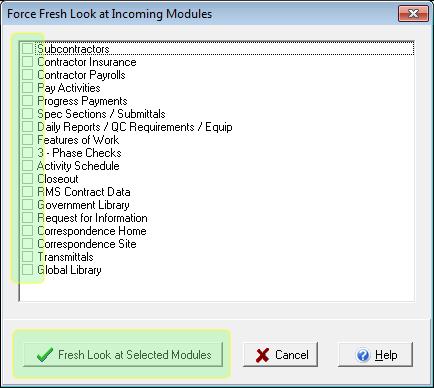
2.Select the menu option "File | Utilities | Fresh Look at Incoming Modules". The Force Fresh Look at Incoming Modules window will appear.
3.In the large white box in the center of the Force Fresh Look at Imports window there will be a list of all of the modules. Place a checkmark in each checkbox for each module that you wish to import all of the data held by the export file for that module.
4.Click the [Fresh Look at Selected Modules] button to have the modules marked to be freshened. Force Fresh Look at Incoming Modules window will then disappear.
The next time you perform an import, more of the information in the export file will appear newer than the data at the site being freshened.
We recommend that when data is not getting from one QCS site to another that the site that has ownership of the module perform a "Stamp" while the site that is not getting the data perform a "Freshen".